Official Guide · Quick Start
Shadowrocket Quick Start
Import an existing server or subscription, choose a routing mode, then check the server and webpage access separately.
Step 01 · Import
Add a server or import a subscription in Add Server
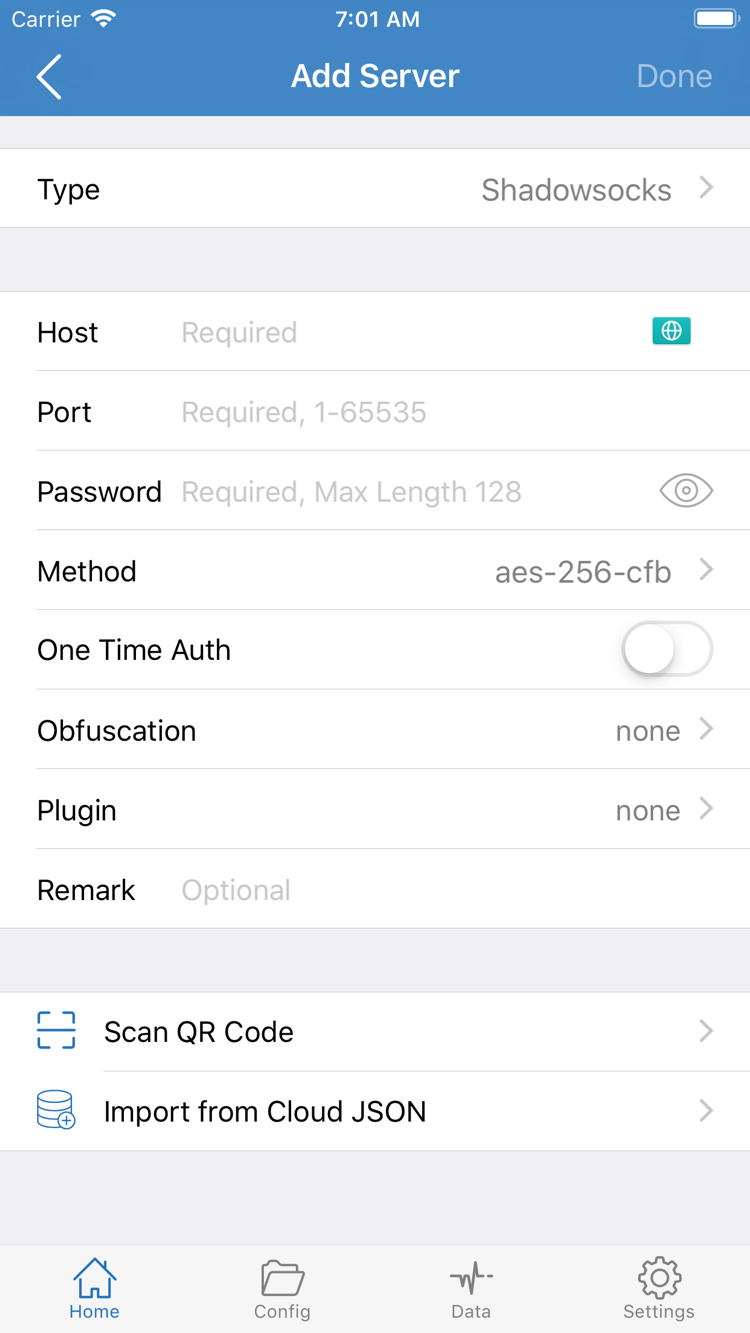
Open Shadowrocket and stay on Home. Open the add screen using the plus sign in the upper-right corner or Add Server in the SERVER group. First identify the details you have: a host, port, and authentication details are for an individual server; a link that retrieves a server list is a subscription; a server QR code from your provider can be scanned. Choose one import method for a given set of details. Do not split a subscription link across individual server fields.
Enter details manually: select Type, then fill in the fields
Tap Type and select the protocol specified in your details. For Shadowsocks, enter the hostname or IP address in Host, the port in Port, and the password and encryption method in Password and Method, respectively. Do not put an entire address with its port in Host, or fill in missing values with a password or encryption method from another server. Fields vary by protocol. If the fields do not match your details, check Type before continuing. For field definitions, see the protocol reference.
Subscription or QR code: keep the original content intact
If you have a subscription link, select Subscribe in Type, paste the complete link into the link field, and save it. Query parameters at the end of the link are part of it; do not remove them to shorten the text. If you have a server QR code, use Scan QR Code on the add screen. Allow camera access when prompted, then point the camera at the code and confirm that the scanned content matches your details. Do not share a complete page containing a password, subscription parameters, or QR code publicly.
After saving, return to Home and confirm that the new entry appears under SERVER, or that the server is listed when you expand the subscription group. Seeing the subscription group name does not mean its list has been retrieved. If the group is empty, first check that the link is complete and still valid on your current network. Continue when at least one selectable server appears in the list.
Step 02 · Routing
Choose a traffic-handling mode in Global Routing
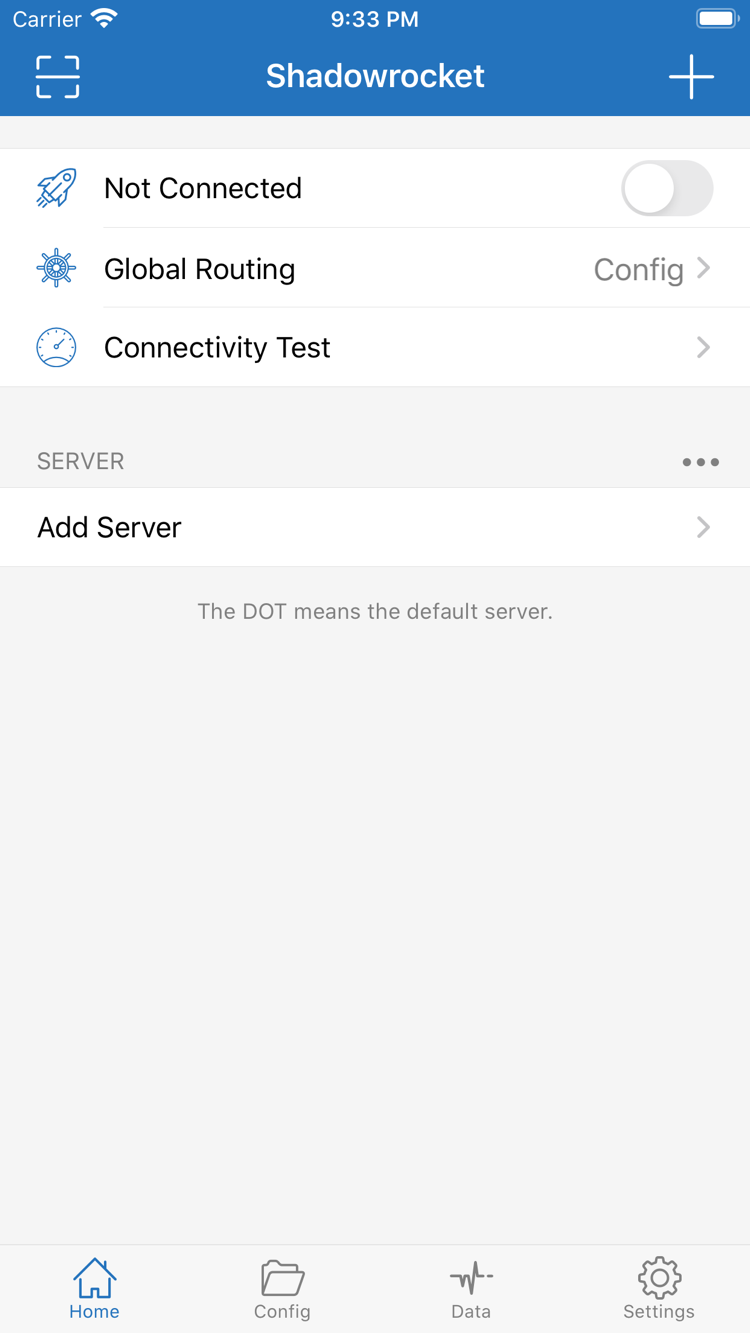
Once a server appears in the list, tap Global Routing from Home. This option determines how traffic is handled, not which server to select. When following these steps for the first time, note the selected mode and check its name on the corresponding row after returning to Home. When comparing results later, avoid changing the server or network at the same time so you can identify which change affected the result.
- Configuration (
Config) - Handles requests according to the currently active configuration rules. Some requests may use a proxy, others may connect directly, and some may match a reject policy. Choose this option if you already have a usable rules configuration and want to check everyday routing. A webpage loading successfully does not prove that it matched a proxy rule.
- Proxy (
Proxy) - Routes traffic handled by this mode through the selected proxy server. To check the proxy connection without interference from the routing rules in your current configuration, you can briefly switch to this option for testing. Restore your usual mode after the comparison.
- Direct (
Direct) - Connects traffic handled by this mode directly, without using a proxy server. Use it to compare access to the same webpage over the device's current network. Even with the connection switch on, a Direct result cannot tell you whether the selected server is available.
Distinguish the Config mode from the Config screen
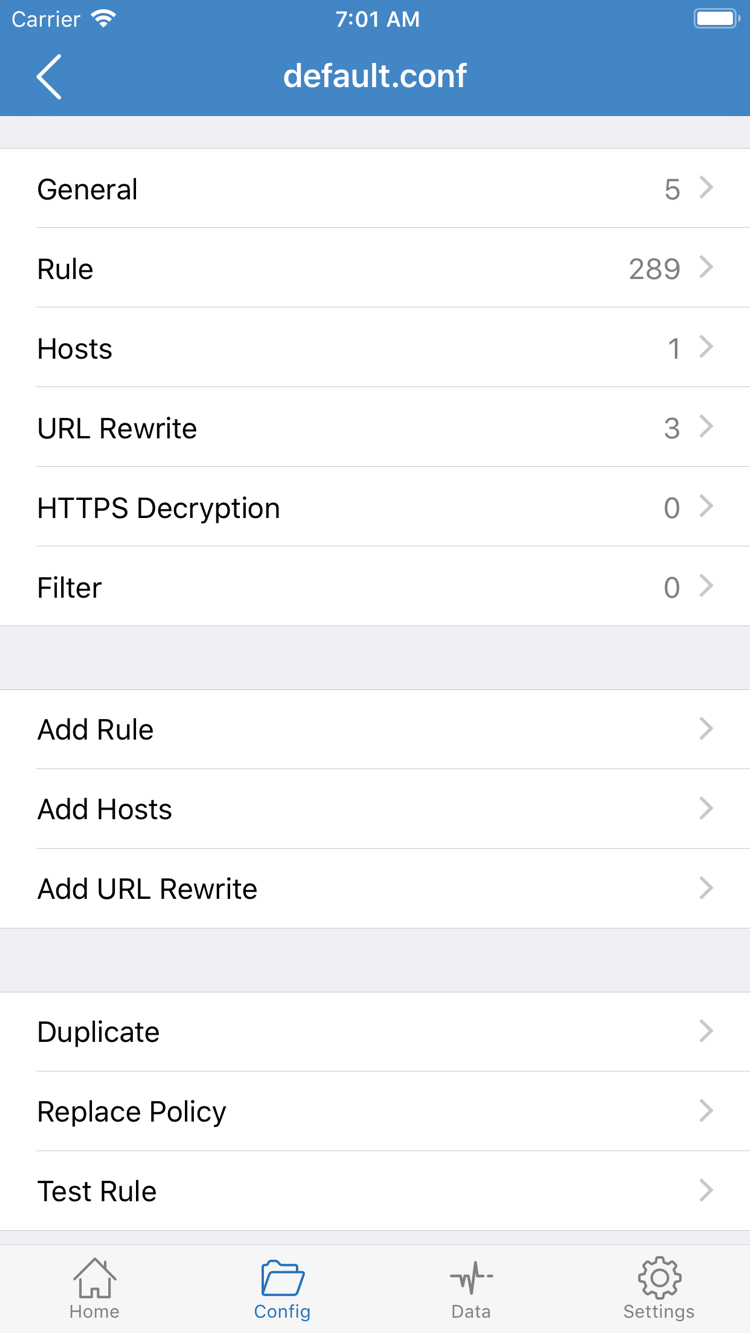
Config in Global Routing is a traffic-handling mode; the Config tab at the bottom is where configuration files are viewed and managed. You do not need to tap Add Rule or change General or Hosts to connect for the first time. If a domain later takes an unexpected route, check Rule in the currently active configuration. Confirm whether an earlier rule matched and which fallback policy applies if no rule matched. See the terminology guide for rule keywords.
Step 03 · Connect
Select a server and connect from Home
Return to Home, expand the SERVER group containing the server you want, and tap its entry. Check the dot beside the entry to confirm the selection, especially if several entries have similar names. Do not assume that expanding a group or seeing a test reading means a server is selected. For the first test, select one server you can identify. You will compare its result with webpage access next.
Respond to the system prompt on first connection
After confirming the server and mode, turn on the connection switch at the top of Home. The first time, your iPhone or iPad may ask whether to allow a VPN configuration to be added. Confirm that the prompt was triggered by Shadowrocket, then follow the system instructions. If the system asks you to authenticate the device, complete that step and return to Home to check the status. If you previously declined authorization, check whether the switch is off again; a dismissed prompt does not mean authorization is complete.
After turning on the switch, check whether the status at the top remains at Not Connected or changes briefly before reverting. If another VPN is already running on the device, first check what it is used for. On a device where you are allowed to make changes, you can disconnect another connection you enabled and try again. If a work- or school-managed device restricts VPN configurations, contact the device administrator. Do not remove its management configuration to try to connect.
When the interface shows that you are connected, keep the same server and mode selected for now. Establishing a system connection only means that the connection has started; it does not confirm that the server is reachable or that the rules behave as expected. Check the server test and actual webpage access separately in the next step to distinguish these states.
Step 04 · Verify
Run Connectivity Test, then check webpage access
Stay on Home, tap Connectivity Test, wait for it to finish, and check the result for the server entry marked with a dot. Do not use the result for another server in the list to infer the status of the current connection. A response means the entry passed this probe; a timeout or failure means the probe did not return the expected result. Readings depend on the test method, target, and current network. They are not download speeds and do not prove that every website is accessible.
Next, open a browser and visit one or two webpages you normally use without changing Wi-Fi or cellular data, the server, or the mode. Prefer pages that need to reload rather than ones that were already open. To check actual routing under Config, also confirm which policy the tested domain is expected to use. Whether a page loads by itself cannot show whether it used DIRECT or PROXY.
Step 05 · Troubleshoot
Find the cause by checking the server, mode, DNS, and rules
Before troubleshooting, note the network, server entry, Global Routing mode, and symptoms at the time of failure. Identify whether the list failed to import, the switch will not stay on, the test failed, or only a particular webpage will not open. Change one condition at a time and retest using the same webpage or test. If it does not help, restore the previous setting before checking the next item.
Check the server and basic network first
If the list is empty, return to the import steps and check that the subscription link is complete and the subscription was retrieved successfully. If the list has entries but the selected one repeatedly fails its test, check Type, Host, Port, and the authentication details required by that protocol. If your own list contains another server known to work, compare the two without changing the mode or network. If webpages you normally access also fail on Direct, troubleshoot the current Wi-Fi or cellular network first, for example by checking whether Wi-Fi requires a sign-in, then test the proxy.
Then check the mode, DNS, and rules
If Direct works and the proxy test responds, but a particular webpage will not open under Config, first confirm which configuration is active. If several domains fail to resolve, check whether DNS settings were changed recently. If only a specific domain is affected, check Rule for an unexpected policy, such as an earlier REJECT match or a request reaching FINAL without matching a specific rule. These are troubleshooting clues, not conclusions. Keep the original configuration before editing; do not delete an entire set of rules to test one webpage.
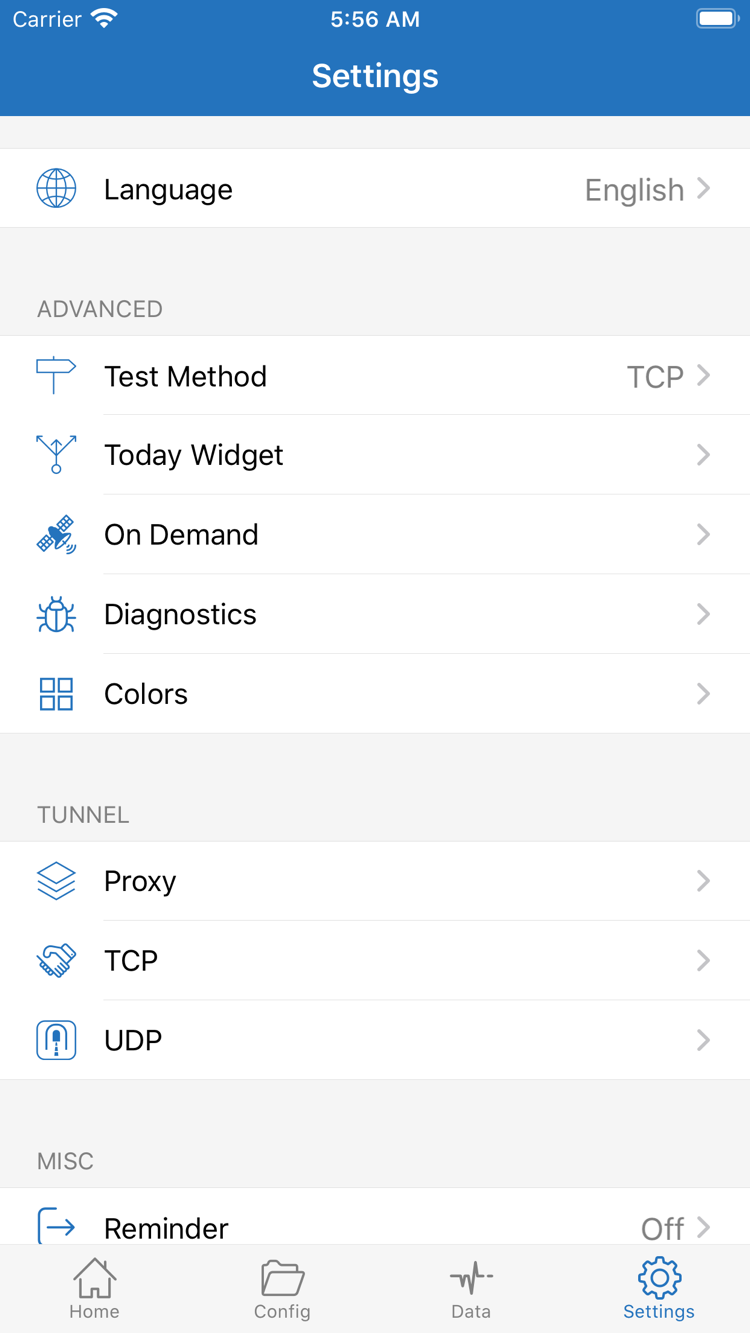
Finally, check related items in Settings
If test results are difficult to compare, check Test Method in Settings to make sure you are not comparing results from different test methods. If the connection turns back on after you switch it off, check whether On Demand has a condition that matches the current network. To investigate further, see Diagnostics. When sharing an error, include only the relevant details and remove server addresses, passwords, and subscription links first. See the FAQ for more recovery options.